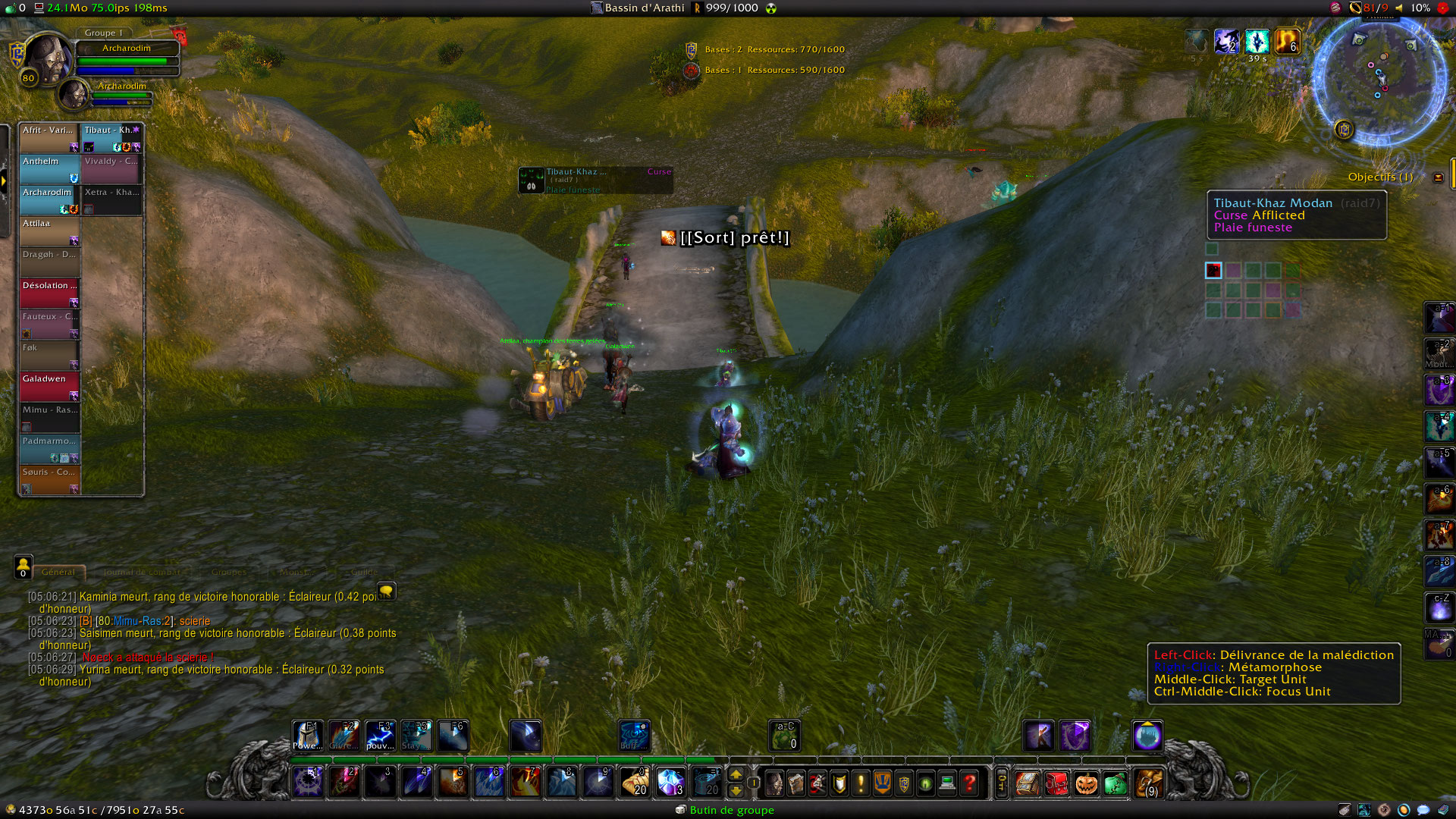
main
Decursive for World of Warcraft
Decursive is a cleansing mod intended to make affliction removal easy, effective and fun for all the classes having this ability.
Documentation:
NOTE: Type /DECURSIVE to open the configuration panel. Decursive's options are not directly available in the "Interface" panel due to ongoing tainting issues Blizzard is not willing to fix.
Decursive usage - Micro Unit Frames documentation - Decursive Macro documentation - Frequently Asked Questions - commands
Decursive key benefits
Ease of use:
- Decursive supports all classes with cleansing abilities and configures itself automatically, it works straight out of the box, no configuration is required.
- Intuitive interface and detailed options, Decursive is suitable for simple usage and power users.
Control what and who you want to dispel:
- Easily Filter out afflictions you don't want to cure or that are useless to remove by class (some are pre-configured). (Such as afflictions affecting mana on non-mana classes, etc...).
- Choose between what you can dispel (magic, curses, poison, diseases, charms) choosing their priority. (this allows you to share the cleansing work with other players effectively)
- Prioritize or exclude members. (keep players, classes, or raid groups in a specific order to cleanse them in order of importance)
Manage Mind controlled units:
- If you are a Mage, a Druid or a Shaman you can Polymorph/Cyclone/Hex mind-controlled players.
- In any case Decursive will allow you to target mind controlled units easily.
- Decursive supports magic charming affect removal for Shamans (Purge and Hex), Priests (Dispel Magic), Hunters (Tranquilizing Shot), and Warlocks (Fellhunter and Doomguards spells).
Don't waste time:
- Your cleansing spell Cooldown is displayed to maximize your dispel speed.
- An automatic blacklist will prevent you from loosing time on players who can't be dispelled. (player 'out of line of sight' for example).
- Decursive choose a logical cleansing order depending on your current position in the raid. (preventing dispel concurrence between players and thus 'nothing to dispel' messages)
React faster:
- Visual and/or auditive alerts when someone needs your attention and can be dispelled.
- Special sound alert when Unstable Affliction is detected and you're about to dispel it.
- Visual and auditive alert when your dispel attempts are resisted or fail.
Integration in any interface:
- Decursive is designed to save screen real estate and to be forgotten when not needed.
- Many options allow you to customize Decursive appearance and interface behavior.
- All Decursive alert colors can be modified making it suitable for color-blind people.
Highly optimized and effective coding:
- Decursive was developed with memory and CPU usage in mind, installing Decursive won't affect your frame rate even in the worst battle conditions.
- Bug free: bugs are not tolerated in Decursive.
In brief, what you get with Decursive is effectiveness, a player using Decursive will always dispel faster than other players.
See also:
- Decursive usage
- Micro Unit Frames documentation
- Decursive Macro documentation
- Frequently Asked Questions try this before asking any question
- commands
Interesting articles and videos about Decursive's usage:
- 2010-11-20 (Updated in 2011-06-11)
A complete Decursive guide by @darista: daritos.apotheosis-now.com/?p=24
- 2009-07-15
Article: www.hotsdots.com/2009/07/improving-the-interface-using-addons-7-decursive-cleansing-and-dispelling/
- 2010-02-20:
Video: WarcraftScience's Decursive tutorial
For other videos about Decursive, see the YouTube playlist.
Decursive is dedicated to the memory of Bertrand Sense known as Glorfindal on the European server Les Sentinelles. He was the raid leader of my guild (Horizon)
For suggestions, feature request, or bug report, use the ticket system provided by WoWAce.com.
Development versions of Decursive are available at this URI: https://www.2072productions.com/to/decursive_dev ; note that development versions may be unstable. Unless you want to help testing unstable code you should download the versions considered stable below.
Do not forget to rate Decursive!
Bitcoin donation address: 1LEHZuPsiHN4hM3H3Gru5xKmDgCj867eFX