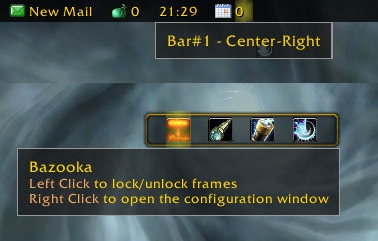
Toggles locking/unlocking the frames. In locked state you can't drag the bars or the plugins.
Enable simple tooltips
Enables using a simplified tooltip while holding down the Alt key. This tooltip overrides the plugin-supplied one with just the plugin title. Useful to find out what addon provides the feed/launcher if it doesn't provide a tooltip of its own.
Adjust frames
Toggle adjusting blizzard frames to make room for top/bottom bars.
(If it is grayed out, then LibJostle-3.0 couldn't be loaded, and the adjustment won't work. Make sure you install and enable LibJostle-3.0 if you don't use the packaged version of Bazooka.)
Enable highlight
Enable highlighting of current plugin (that would receive mouse clicks).
Disable minimap icons
Disable minimap icons for the Broker plugins. If you turn it off, you'll need to reload the UI to make them appear on the minimap.
Show disabled plugins last
If checked, the disabled plugins will be sorted to the end of the plugin list instead of keeping them among the enabled plugins in alphabetical order
Enable opacity workaround
Enable extra code to handle proper fading of plugin texts with embedded icons (like various money tracker plugins). Obviously you only need this if you have such plugins and you use the bar-fading feature. You need to reload the UI to apply changes made to this setting.
Fade-out delay
The delay before a bar fades after the mouse leaves its frame.
Fade-out duration
The length of the fade-out animation.
Fade-in duration
The length of the fade-in animation.
Create new bar
You guessed it, it creates a new bar.
Bar options
Attach point
Set the attach point of the bar, possible values:
Top: attach to top of screen
Bottom: attach to bottom of screen
None: do not attach, the bar can be dragged to a place you like
Strata
Adjust the bar's strata.
Hidden
Make the bar hidden.
Marked
Mark the bar for easy hide/show toggle by either clicking the bazooka icon or using the /bazooka togglebars slash command.
Fade in combat
Enable fade-out while in combat.
Fade out of combat
Enable fade-out while out of combat.
Disable mouse in combat
Disable the mouse for the bar while in combat, making it click-thru. Doesn't apply to individual plugins shown in the bar.
Disable mouse out of combat
Disable the mouse for the bar while out of combat, making it click-thru. Doesn't apply to individual plugins shown in the bar.
Disable during pet battle
Disable the bar during pet battle. The bar fades out completely and mouse interaction is disabled for the bar and its plugins.
Fade opacity
Set how much the bar should fade if Fade in combat or Fade out of combat is enabled.
Left spacing
Spacing between plugins positioned on the left side (Left area).
Right spacing
Spacing between plugins positioned on the right side (Right area).
Center spacing
Spacing between plugins positioned in the center (Center-Left, Center and Center-Right areas).
Icon-text spacing
Spacing between the icon and text of the plugins.
Font
The font used to display plugin texts.
Font size
Set the font size.
Font outline
Specify font outline.
Icon size
The size of the icon (shown to the left of the text if the plugin provides it).
Label color
Color to use to display the label provided by the plugin.
Text color
Color to use to display the plugin text.
Suffix color
Color to use to display the suffix string (if the plugin provides its text as value, suffix).
Opacity
Opacity to use for the plugin icon and text.
Frame height
The height of the bar.
Frame width
The width of the bar (only available if the bar is not attached to top/bottom).
Fit to content width
Fit the bar's width to match the size of the contents it displays (only available if the bar is not attached to top/bottom)
Enable background
Enable background options for the bar.
Background texture
Texture to use as the bar's background.
Border texture
Texture to use as the bar's border.
Background color
Color to use to tint the background texture. Note: not all background textures can be tinted, for example "Blizzard Dialog" is black, so tinting has no effect.
Background border color
Color of the border.
Tile background
Toggle tiling the background texture.
Background tile size
The size of the tiles (if Tile background is enabled).
Border thickness
The edge size used for the border texture.
Tweak anchor positions
Manually adjust the left/right/top/bottom anchor positions. It is useful if there's a small gap between the top of the screen and the top bar (due to some strange rounding wow does, or when using some of the border textures).
Plugin options
Enabled
Enable/disable the plugin.
Show icon
Toggle display of the icon provided by the plugin.
Show label
Toggle display of the label provided by the plugin.
Show title
Use plugin title as label if Show label is enabled but the plugin doesn't provide a label.
Show text
Toggle display of the text provided by the plugin.
Show value
Toggle display of the value provided by the plugin. If Show text is also enabled and the plugin provides text, then text will be used instead of value even if this is checked.
Show suffix
Toggle display of the suffix provided by the plugin. Only used when displaying the value, ignored if displaying the text.
Strip colors
Remove plugin defined colors from plugin texts.
Icon border clip
Clip icon borders. This much percent of the icon will be cut off from each side when displaying the icon.
Max text width
Restrict the width of the text displayed by the plugin. Set to 0 or emtpy to disable this feature.
Hide tooltip on click
If enabled, clicking the plugin hides the plugin's tooltip immediately.
Disable tooltip
Disable tooltip for this plugin.
Disable tooltip in combat
Disable tooltip for this plugin while in combat.
Disable mouse in combat
Disable the mouse for the plugin while in combat, making it click-thru.
Disable mouse out of combat
Disable the mouse for the plugin while out of combat, making it click-thru.
Force Hide Tooltip
There are some plugins that don't hide their tooltip when the display addon tells them. Checking this option will enable special code that will try to hide those frame when needed. As this is sort-of hackish, you should only enable this option if the plugin in question really misbehaves (there's a certain amount of otherwise unnecessary CPU usage, and it can also cause otherwise "legal" stuff to break).
Override tooltip scale
Allow overriding the tooltip's scale.
Tooltip scale
Set the tooltip's scale to this value before showing if Override Tooltip Scale is enabled.
Shrink threshold
Set a threshold to specify the minimum size difference before the size of the plugin is shrunk, useful to reduce "jitter" caused by small text changes.
Bar
Select which bar should display the plugin.
Area
Select the area to place the plugin within the bar.
Comments
To post a comment, please login or register a new account.
Comments