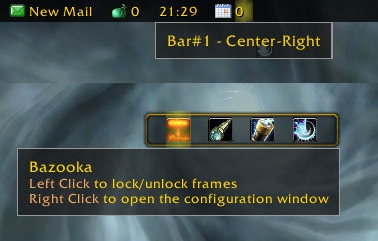
Bazooka
Bazooka is a Data Broker Display similar in functionality and looks to FuBar.
Feature highlights
- Top/Bottom alignment or free moving of bars.
- Left-click drag moves, alt-right-click drag resizes the bar (unless the frames are locked).
- Drag-and-drop plugin placement with highlighted drop positions.
- Configurable background / font / icon size.
- The usual options for data broker displays (show text/icon/label, optionally show title in place of label if it's missing).
- Support of iconCoords and icon[RGB] (TomTom arrow, for example).
- Left / Center-Left / Center / Center-Right / Right placement position for plugins within bars, allowing easy layout of plugins. Plugins placed in the Center area are centered as a bunch.
- Optional auto-fade while in combat / out of combat.
- Optionally disable mouse / tooltips.
- Optional simple tooltips (just show title if Alt is held while moving the mouse pointer over the plugin).
- Optional highlight on mouseover for the active plugin.
- Load-on-demand configuration options, small memory footprint for "standard" operation.
- Bulk mode configuration that allows configuring multiple bars/plugins easily.
- Restrict plugin text width
- Disable minimap icons
- Tooltip scale override
- Support for OnMouseWheel, OnReceiveDrag and OnDoubleClick script handlers for plugins
- Optionally override plugin defined text colors
Usage
Getting started
- Create new bars from the main options window
- Drag plugins to desired location
- Drag plugins off bars to disable them
- Dragging bars while holding Alt will change their attached/detached state. Otherwise top/bottom bars will snap back to top or bottom depending on where you drop them.
Using the bulk configuration (standard method)
- Uncheck Auto-apply.
- Check the bars/plugins you want the settings to apply to.
- Check Apply next to the settings you want to change, and set them to the value you need.
- Click Apply at the bottom of the options. The changes you selected will be applied to all selected bars/plugins at this point.
Using the bulk configuration (auto-apply method)
- Check Auto-apply.
- Check the bars/plugins you want the settings to apply to.
- Change the settings (or click the Apply text next to them if their current value is the one you want). The changes will be applied immediately to all selected bars/plugins.
Slash commands
/bazooka- Open configuration.
/bazooka locked- Toggle locked/unlocked state.
/bazooka hidebars- Make the bars hidden. If no bar numbers are specified, then it works on the marked bars (see bar options).
/bazooka showbars- Make the bars visible. If no bar numbers are specified, then it works on the marked bars (see bar options).
/bazooka togglebars- Toggle hidden/visible state of bars. If no bar numbers are specified, then it works on the marked bars (see bar options).
Obtaining plugins
You can find Data Broker plugins at these places:
- Data Broker plugins on Curse
- Data Broker plugins on WowAce
- Data Broker plugins on WoWInterface
- Tekkub's list
Options
Comments


-

mitchnull Owner
-
View User Profile
-
Send Message
Posted Sep 23, 2026Are there any plans to add support for WoW Forever please? Would be really nice to be able to add my preferred LDB Display addon to the newest flavor of WoW.
-
View User Profile
-
Send Message
Posted Sep 25, 2026@RealGrizzlyUK Works perfectly fine if you edit the .toc file and add 16001 to the interface line
like so
## Interface: 120007,120100,11509,50504,20506,16001
on both the bazooka and the bazooka-options addon.
-
View User Profile
-
Send Message
Posted Sep 25, 2026@Lager Thanks for the confirmation, just downloaded the brand new v3.5.3 and I didn't need to edit those two .toc files because they're already updated to include 16001.
-
View User Profile
-
Send Message
Posted May 18, 2026It seems right clicking on a bar no longer brings up bazooka options, i'm pretty sure it always used to?
-
View User Profile
-
Send Message
Posted May 19, 2026@PrivateSniper
Which version of WoW are you playing? Do you get any errors?
-
View User Profile
-
Send Message
Posted May 12, 2026Still receiving this error when opening options.
Message: Interface/AddOns/Bazooka_Options/Options.lua:99: bad argument #1 to 'OpenSettingsPanel' (outside of expected range -2147483648 to 2147483647 - Usage: C_SettingsUtil.OpenSettingsPanel([openToCategoryID, scrollToElementName]))
Time: Tue May 12 08:00:10 2026
Count: 1
Stack:
[Interface/AddOns/Bazooka_Options/Options.lua]:99: in function 'openConfigDialog'
[Interface/AddOns/Bazooka/Bazooka.lua]:540: in function <Interface/AddOns/Bazooka/Bazooka.lua:534>
Locals:
self=<table>{
attachedBars=<table>
AttachNames=<table>
locked=false
enabled=true
barOpts=Frame <AceGUIContainer-BlizOptionsGroup.lua:102>
defaultModuleState=false
AreaNames=<table>
numBars=1
optsId="Bazooka"
bottomBottom=-1
opts=Frame <AceGUIContainer-BlizOptionsGroup.lua:102>
pluginOpts=Frame <AceGUIContainer-BlizOptionsGroup.lua:102>
enabledState=true
profiles=Frame <AceGUIContainer-BlizOptionsGroup.lua:102>
Plugin=<table>
AppName="Bazooka"
bottomTop=0
bulkConfigOpts=Frame <AceGUIContainer-BlizOptionsGroup.lua:102>
db=<table>
baseName="Bazooka"
plugins=<table>
defaultModuleLibraries=<table>
topBottom=-19.999966
ldbs=<table>
topTop=0
version="Bazooka-v3.4.2"
orderedModules=<table>
TopAnchor=Bazooka_TopAnchor <Bazooka.lua:2176>
Defaults=<table>
optionsLoaded=true
BottomAnchor=Bazooka_BottomAnchor <Bazooka.lua:2183>
modules=<table>
name="Bazooka"
bars=<table>
Bar=<table>
}
opts=Frame <AceGUIContainer-BlizOptionsGroup.lua:102>{
obj=<table>
parent="Bazooka"
name=2
}
optsAppName="Bazooka.bars"
ACD=<table>{
BlizOptionsIDMap=<table>
tooltip=AceConfigDialogTooltip <AceConfigDialog-3.0.lua:18>
BlizOptions=<table>
popup=Frame <AceConfigDialog-3.0.lua:550>
OpenFrames=<table>
Status=<table>
frame=Frame <AceConfigDialog-3.0.lua:17>
}
Settings=<table>{
VarType=<table>
ControlType=<table>
SOCIAL_CATEGORY_ID=31
PINGSYSTEM_CATEGORY_ID=32
KEYBINDINGS_CATEGORY_ID=33
INTERFACE_CATEGORY_ID=28
ACTION_BAR_CATEGORY_ID=30
Default=<table>
NAMEPLATE_OPTIONS_CATEGORY_ID=41
CommitFlag=<table>
RaidSelfHighlightInitializer=<table>
ADVANCED_OPTIONS_CATEGORY_ID=40
SpellAlertOpacityInitializer=<table>
MAC_CATEGORY_ID=25
ClickCastInitializer=<table>
PressAndHoldCastingInitializer=<table>
QuickKeybindInitializer=<table>
EmpoweredTapControlsInitializer=<table>
OccludedSilhouettePlayerInitializer=<table>
PingSoundsInitializer=<table>
AUDIO_CATEGORY_ID=22
CategorySet=<table>
}
-
View User Profile
-
Send Message
Posted May 13, 2026In reply to JaminAlKira:
I've merged a fix submitted by KurtzPT. I could not test it though, please try v3.5.0 and report back.
-
View User Profile
-
Send Message
Posted May 14, 2026@mitchnull Works now. Thanks a lot :)
-
View User Profile
-
Send Message
Posted Apr 18, 2026Is there a setting I am missing, or is there a way to disable it so it does not automatically add plugins when I install new addons?
It really shouldn't be opt out, but opt in. Meaning I should have control over what I add, instead of having to remove every new addon from my bazooka bar.
-
View User Profile
-
Send Message
Posted Apr 15, 20261x Bazooka_Options/Options.lua:99: bad argument #1 to 'OpenSettingsPanel' (outside of expected range -2147483648 to 2147483647 - Usage: C_SettingsUtil.OpenSettingsPanel([openToCategoryID, scrollToElementName]))
[Bazooka_Options/Options.lua]:99: in function 'openConfigDialog'
[Bazooka/Bazooka.lua]:540: in function <Bazooka/Bazooka.lua:534>
Locals:
self = <table> {
attachedBars = <table> {
}
AttachNames = <table> {
}
locked = false
enabled = true
barOpts = Frame {
}
defaultModuleState = false
AreaNames = <table> {
}
numBars = 1
optsId = "Bazooka"
bottomBottom = -1
opts = Frame {
}
pluginOpts = Frame {
}
enabledState = true
profiles = Frame {
}
Plugin = <table> {
}
AppName = "Bazooka"
bottomTop = 0
bulkConfigOpts = Frame {
}
db = <table> {
}
baseName = "Bazooka"
plugins = <table> {
}
defaultModuleLibraries = <table> {
}
topBottom = -20.000008
ldbs = <table> {
}
topTop = 0
version = "Bazooka-v3.4.2"
orderedModules = <table> {
}
TopAnchor = Bazooka_TopAnchor {
}
Defaults = <table> {
}
optionsLoaded = true
BottomAnchor = Bazooka_BottomAnchor {
}
modules = <table> {
}
name = "Bazooka"
bars = <table> {
}
Bar = <table> {
}
}
opts = Frame {
obj = <table> {
}
parent = "Bazooka"
name = 19
}
optsAppName = "Bazooka.bars"
ACD = <table> {
BlizOptionsIDMap = <table> {
}
tooltip = AceConfigDialogTooltip {
}
BlizOptions = <table> {
}
popup = Frame {
}
OpenFrames = <table> {
}
Status = <table> {
}
frame = Frame {
}
}
Settings = <table> {
VarType = <table> {
}
ControlType = <table> {
}
SOCIAL_CATEGORY_ID = 128
PINGSYSTEM_CATEGORY_ID = 129
KEYBINDINGS_CATEGORY_ID = 130
INTERFACE_CATEGORY_ID = 125
ACTION_BAR_CATEGORY_ID = 127
Default = <table> {
}
NAMEPLATE_OPTIONS_CATEGORY_ID = 138
CommitFlag = <table> {
}
RaidSelfHighlightInitializer = <table> {
}
ADVANCED_OPTIONS_CATEGORY_ID = 137
SpellAlertOpacityInitializer = <table> {
}
ClickCastInitializer = <table> {
}
PressAndHoldCastingInitializer = <table> {
}
QuickKeybindInitializer = <table> {
}
EmpoweredTapControlsInitializer = <table> {
}
OccludedSilhouettePlayerInitializer = <table> {
}
PingSoundsInitializer = <table> {
}
AUDIO_CATEGORY_ID = 120
CategorySet = <table> {
}
}
-
View User Profile
-
Send Message
Posted Feb 12, 2026got this creating a new bar
1x Bazooka_Options/Options.lua:99: bad argument #1 to 'OpenSettingsPanel' (outside of expected range -2147483648 to 2147483647 - Usage: C_SettingsUtil.OpenSettingsPanel([openToCategoryID, scrollToElementName]))
[tail call]: ?
[C]: in function 'OpenSettingsPanel'
[Bazooka_Options/Options.lua]:99: in function 'openConfigDialog'
[Bazooka_Options/Options.lua]:126: in function 'member'
[LiteBag/Libs/AceConfig-3.0-3/AceConfigDialog-3.0-92/AceConfigDialog-3.0.lua]:215: in function <...nfig-3.0/AceConfigDialog-3.0/AceConfigDialog-3.0.lua:164>
[tail call]: ?
[LiteBag/Libs/AceConfig-3.0-3/AceConfigDialog-3.0-92/AceConfigDialog-3.0.lua]:1460: in function <...nfig-3.0/AceConfigDialog-3.0/AceConfigDialog-3.0.lua:1118>
[LiteBag/Libs/AceConfig-3.0-3/AceConfigDialog-3.0-92/AceConfigDialog-3.0.lua]:1650: in function 'FeedGroup'
[LiteBag/Libs/AceConfig-3.0-3/AceConfigDialog-3.0-92/AceConfigDialog-3.0.lua]:1575: in function <...nfig-3.0/AceConfigDialog-3.0/AceConfigDialog-3.0.lua:1559>
[C]: ?
[Bazooka_Options/libs/Ace3/AceGUI-3.0-41/AceGUI-3.0.lua]:66: in function <.../Bazooka_Options/libs/Ace3/AceGUI-3.0/AceGUI-3.0.lua:64>
[Bazooka_Options/libs/Ace3/AceGUI-3.0-41/AceGUI-3.0.lua]:300: in function 'Fire'
[Bazooka_Options/libs/Ace3/AceGUI-3.0-41/widgets/AceGUIContainer-TabGroup.lua]:342: in function 'SelectTab'
[Bazooka_Options/libs/Ace3/AceGUI-3.0-41/widgets/AceGUIContainer-TabGroup.lua]:200: in function <...Ace3/AceGUI-3.0/widgets/AceGUIContainer-TabGroup.lua:197>
Locals:
(*temporary) = "LeftButton"
(*temporary) = false
-
View User Profile
-
Send Message
Posted Feb 6, 2026NEw user here. I'm having an issue with the game UI not shifting up or down so I can see the bar. The bar just shows behind the game's UI. If I change the strata it shows on top but I thought it would shift the game UI like Titan Panel does. Is this a bug or as intended?
-
View User Profile
-
Send Message
Posted Feb 4, 2026New user here, and this looks like a great tool to use...but I'm really confused on how to set this up. I'm mainly looking to display character stats, like gear durability, etc. I can't find any help resources, and only found one Youtube video from 8 years ago. The recommended brokers that I did see in places either haven't been updated for years or are showing as incompatible for retail 12.0. Can anyone point me in the right direction?!
-
View User Profile
-
Send Message
Posted Feb 4, 2026In reply to trusting_bhaskara21:
Hm. This is how things worked in the beginning, so this was a bugfix really. The assumption was that one would use a single broker display (either Bazooka or the minimap icons). You can re-enable the minimap icons from the Bazooka options, but it will enable all, even if they're on your bar (but I'm pretty sure this was the case for you before the fix anyway)
-
View User Profile
-
Send Message
Posted Jan 31, 2026Hello,
A somewhat strange error:
Since version 3.4.1, the minimap buttons have disappeared.
I have tested this several times now, and when I disable Bazooka, everything works as usual.
After rolling back to version 3.4.0, everything seems to be working fine again.
Update:
I see your changelog:
- only show minimap icons if not configure to be hidden
But all add-ons are hidden, not just those related to Bazooka. That's not a good deal.
-
View User Profile
-
Send Message
Posted Jan 28, 2026Ever since 12.0.X came out and Bazooka was updated, I cannot open it up for managing the options. When I type "/bazooka" in the command line, nothing happens (it doesn't even return a blank line or the traditional "if you need help..."). When I open up bugsack, mI get the following
38x Bazooka_Options/Options.lua:99: bad argument #1 to 'OpenSettingsPanel' (outside of expected range -2147483648 to 2147483647 - Usage: C_SettingsUtil.OpenSettingsPanel([openToCategoryID, scrollToElementName]))
[Bazooka_Options/Options.lua]:99: in function 'openConfigDialog'
[Bazooka/Bazooka.lua]:540: in function <Bazooka/Bazooka.lua:534>
Locals:
self = <table> {
attachedBars = <table> {
}
AttachNames = <table> {
}
locked = false
enabled = true
barOpts = Frame {
}
defaultModuleState = false
AreaNames = <table> {
}
numBars = 2
optsId = "Bazooka"
bottomBottom = 0
opts = Frame {
}
pluginOpts = Frame {
}
enabledState = true
profiles = Frame {
}
Plugin = <table> {
}
AppName = "Bazooka"
bottomTop = 20
bulkConfigOpts = Frame {
}
db = <table> {
}
baseName = "Bazooka"
plugins = <table> {
}
defaultModuleLibraries = <table> {
}
topBottom = -20.000004
ldbs = <table> {
}
topTop = 0
version = "Bazooka-v3.3.5"
orderedModules = <table> {
}
TopAnchor = Bazooka_TopAnchor {
}
Defaults = <table> {
}
optionsLoaded = true
BottomAnchor = Bazooka_BottomAnchor {
}
modules = <table> {
}
name = "Bazooka"
bars = <table> {
}
Bar = <table> {
}
}
opts = Frame {
obj = <table> {
}
parent = "Bazooka"
name = 2
}
optsAppName = "Bazooka.bars"
ACD = <table> {
BlizOptionsIDMap = <table> {
}
tooltip = AceConfigDialogTooltip {
}
BlizOptions = <table> {
}
popup = Frame {
}
OpenFrames = <table> {
}
Status = <table> {
}
frame = Frame {
}
}
Settings = <table> {
VarType = <table> {
}
ControlType = <table> {
}
SOCIAL_CATEGORY_ID = 89
PINGSYSTEM_CATEGORY_ID = 90
KEYBINDINGS_CATEGORY_ID = 91
INTERFACE_CATEGORY_ID = 86
ACTION_BAR_CATEGORY_ID = 88
Default = <table> {
}
NAMEPLATE_OPTIONS_CATEGORY_ID = 99
CommitFlag = <table> {
}
RaidSelfHighlightInitializer = <table> {
}
ADVANCED_OPTIONS_CATEGORY_ID = 98
ClickCastInitializer = <table> {
}
QuickKeybindInitializer = <table> {
}
PressAndHoldCastingInitializer = <table> {
}
OccludedSilhouettePlayerInitializer = <table> {
}
SpellAlertOpacityInitializer = <table> {
}
EmpoweredTapControlsInitializer = <table> {
}
PingSoundsInitializer = <table> {
}
AUDIO_CATEGORY_ID = 81
CategorySet = <table> {
}
}
Help! I _LOVE_ Bazooka!!!
Thanks,
T.
-
View User Profile
-
Send Message
Posted Jan 24, 2026I get this when right clicking Bazooka:
2x ...ddOns/Blizzard_Settings_Shared/Blizzard_Settings.lua:144: bad argument #1 to 'OpenSettingsPanel' (outside of expected range -2147483648 to 2147483647 - Usage: C_SettingsUtil.OpenSettingsPanel([openToCategoryID, scrollToElementName]))
[Blizzard_Settings_Shared/Blizzard_Settings.lua]:144: in function 'OpenToCategory'
[Bazooka_Options/Options.lua]:103: in function 'openConfigDialog'
[Bazooka/Bazooka.lua]:540: in function <Bazooka/Bazooka.lua:534>
Locals:
categoryID = "Bazooka"
scrollToElementName = nil
-
View User Profile
-
Send Message
Posted Jan 23, 2026Getting this error after every reload since prepatch. Using version 3.3.4.
https://i.imgur.com/7gfANf6.png
23x [ADDON_ACTION_FORBIDDEN] AddOn 'Bazooka' tried to call the protected function 'AceEvent30Frame:RegisterEvent()'.
[!BugGrabber/BugGrabber.lua]:583: in function '?'
[!BugGrabber/BugGrabber.lua]:507: in function <!BugGrabber/BugGrabber.lua:507>
[C]: in function 'RegisterEvent'
[Bazooka/libs/Ace3/AceEvent-3.0-4/AceEvent-3.0.lua]:33: in function 'OnUsed'
[LibDBIcon-1.0-55/CallbackHandler-1.0-8/CallbackHandler-1.0.lua]:132: in function 'RegisterEvent'
[Spy/Spy.lua]:1744: in function <Spy/Spy.lua:1733>
[C]: ?
[Bazooka/libs/Ace3/AceAddon-3.0-13/AceAddon-3.0.lua]:66: in function <...dOns/Bazooka/libs/Ace3/AceAddon-3.0/AceAddon-3.0.lua:61>
[Bazooka/libs/Ace3/AceAddon-3.0-13/AceAddon-3.0.lua]:523: in function 'EnableAddon'
[Bazooka/libs/Ace3/AceAddon-3.0-13/AceAddon-3.0.lua]:626: in function <...dOns/Bazooka/libs/Ace3/AceAddon-3.0/AceAddon-3.0.lua:611>
[C]: ?
[C]: in function 'LoadAddOn'
...[C]: in function 'LoadAddOn'
[ArchonTooltip/Utils.lua]:332: in function 'LoadAddOn'
[ArchonTooltip/Utils.lua]:365: in function 'LoadAddOn'
[ArchonTooltip/Init.lua]:97: in function <ArchonTooltip/Init.lua:89>
[Blizzard_SharedXML/EventUtil.lua]:102: in function <Blizzard_SharedXML/EventUtil.lua:94>
[C]: ?
[Blizzard_SharedXMLBase/CallbackRegistry.lua]:210: in function <...eBlizzard_SharedXMLBase/CallbackRegistry.lua:209>
[C]: ?
[Blizzard_SharedXMLBase/CallbackRegistry.lua]:213: in function 'TriggerEvent'
[Blizzard_SharedXMLBase/GlobalCallbackRegistry.lua]:9: in function <...ns/Blizzard_SharedXMLBase/GlobalCallbackRegistry.lua:8>
Locals:
self = <table> {
}
event = "ADDON_ACTION_FORBIDDEN"
addonName = "Bazooka"
addonFunc = "AceEvent30Frame:RegisterEvent()"
name = "Bazooka"
badAddons = <table> {
Bazooka = true
}
L = <table> {
ADDON_CALL_PROTECTED_MATCH = "^%[(.*)%] (AddOn '.*' tried to call the protected function '.*'.)$"
NO_DISPLAY_2 = "|cffffff00The standard display is called BugSack, and can probably be found on the same site where you found !BugGrabber.|r"
ERROR_DETECTED = "%s |cffffff00captured, click the link for more information.|r"
USAGE = "|cffffff00Usage: /buggrabber <1-%d>.|r"
BUGGRABBER_STOPPED = "|cffffff00There are too many errors in your UI. As a result, your game experience may be degraded. Disable or update the failing addons if you don't want to see this message again.|r"
STOP_NAG = "|cffffff00!BugGrabber will not nag about missing a display addon again until next patch.|r"
ADDON_DISABLED = "|cffffff00!BugGrabber and %s cannot coexist; %s has been forcefully disabled. If you want to, you may log out, disable !BugGrabber, and enable %s.|r"
NO_DISPLAY_STOP = "|cffffff00If you don't want to be reminded about this again, run /stopnag.|r"
NO_DISPLAY_1 = "|cffffff00You seem to be running !BugGrabber with no display addon to go along with it. Although a slash command is provided for accessing error reports, a display can help you manage these errors in a more convenient way.|r"
ERROR_UNABLE = "|cffffff00!BugGrabber is unable to retrieve errors from other players by itself. Please install BugSack or a similar display addon that might give you this functionality.|r"
ADDON_CALL_PROTECTED = "[%s] AddOn '%s' tried to call the protected function '%s'."
}
-
View User Profile
-
Send Message
Posted Jan 23, 2026In reply to LordBoos: I'm getting the same error. I'm actually getting this error on multiple addons. I've also tried disabling all addons except Bazooka and I still get the error.
-
View User Profile
-
Send Message
Posted Jan 24, 2026In reply to LordBoos: I get this exact error, but it only seems to appear when I have the Quartz addon enabled.